 RFDesk
Set it up once, before you leave
On your office computer, open RFDesk, go to Security in its settings and set an unattended password. Switch on Allow unattended access. For a second step, switch on Require an authenticator code and scan it with an authenticator app. That is all the setup there is. The full walk-through is on the unattended access page.
Connect from what you have
At home, enter the computer's ID and your unattended password on the connect page, in the Windows app or in the Android app. Nobody is asked, because you are the owner. Devices you connect to are remembered in your address book, so the next morning it is one click.
Work as if you were there
A remote session should not feel like a compromise.
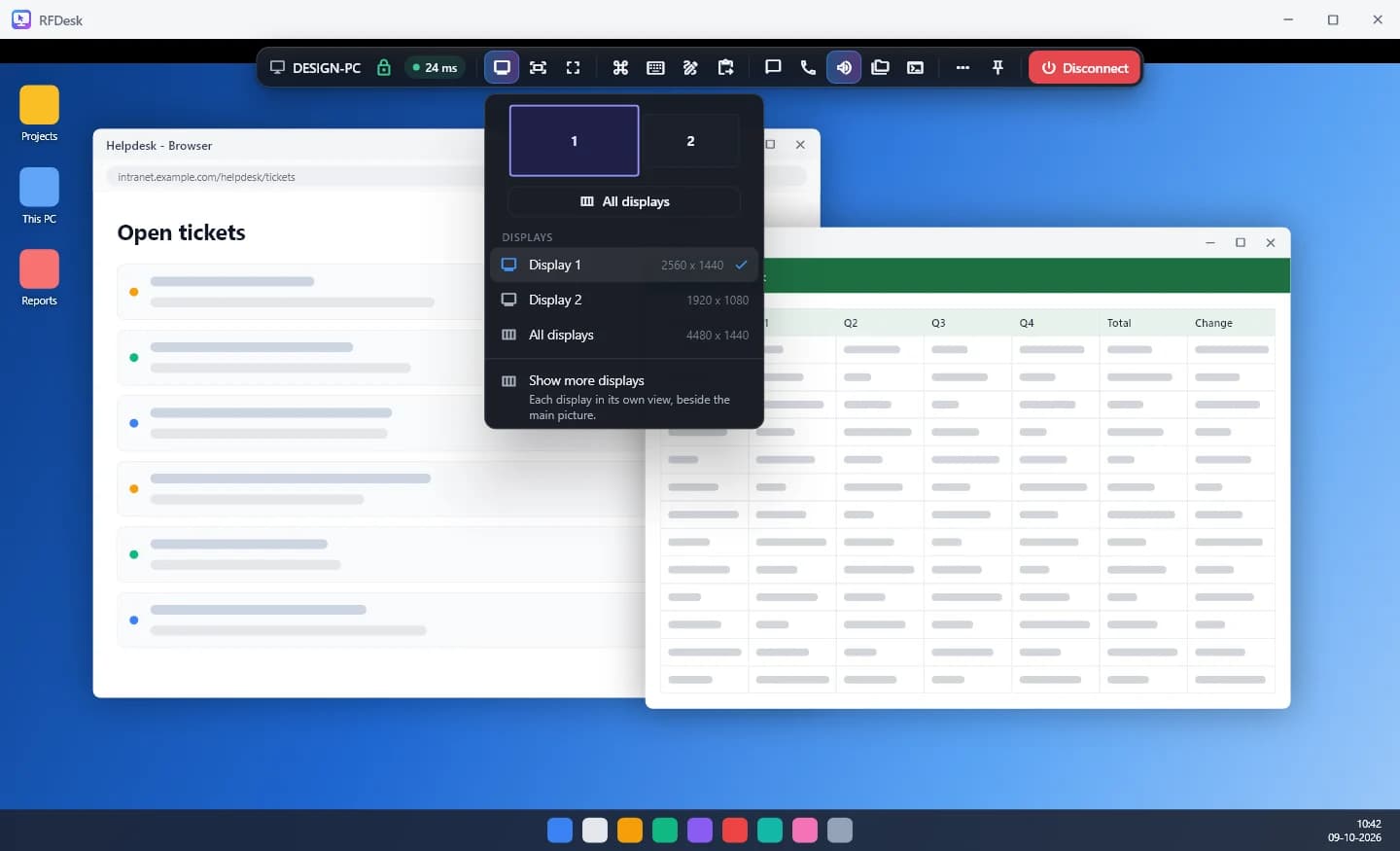
- Every monitor of the office machine, one at a time, side by side, or each in its own window.
- The file manager and the clipboard to move documents between the two computers.
- Remote printing: print on the office computer and the document arrives on your side, to print at home or keep as a PDF.
- The office computer's sound.
- Display options to favour speed on a slow home connection.
Keep the office screen private
With privacy mode, the monitor on your desk goes black for anyone near it and its mouse and keyboard are ignored while you work. It ends with the session.
Limit who can even try
Add the computer to your account and set access rules: only your account, only during your working hours, only from networks you list. The server turns everyone else away before your computer is told that someone asked. If the machine is asleep, another of your devices on the same network can wake it.
Before you rely on it
- The office computer has to be switched on, signed in to Windows and unlocked. RFDesk cannot sign in to Windows for you.
- Waking a sleeping computer needs wake-on-LAN switched on in its firmware and another of your devices online on the same network.
- If the computer belongs to your employer, ask before you install remote access on it. A team policy can forbid unattended access.