 RFDesk
What they do
They install RFDesk for Windows once, from the download page. After that, whenever they need you, they open it and read you two things from the screen: the nine-digit ID and the one-time password.
Reading numbers aloud is awkward for some people. They can press Invite someone instead and send you the link over the messaging app you already use together. The link works once and for the time they choose.
What you do
Open the connect page in your browser, type the ID and password, and press Connect. A request appears on their screen with your name. When they press Allow, you see their screen and can move the mouse. Nothing is shared before that.
Showing, not only doing
Sometimes the kindest help is teaching. Switch on the whiteboard and draw a circle around the button they need. Both of you see the lines, and your pointer controls nothing while you draw. Use the voice call or the chat to talk it through inside the session.
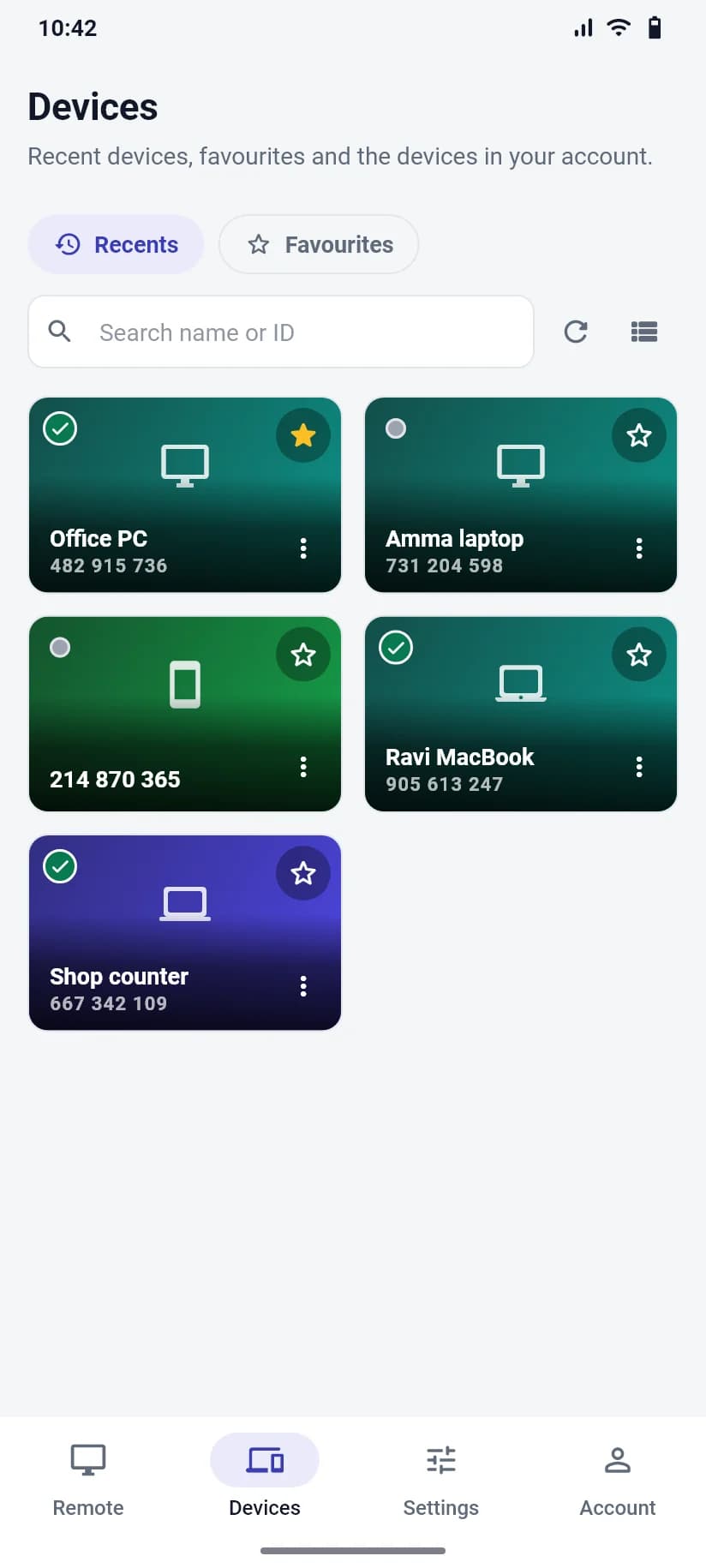
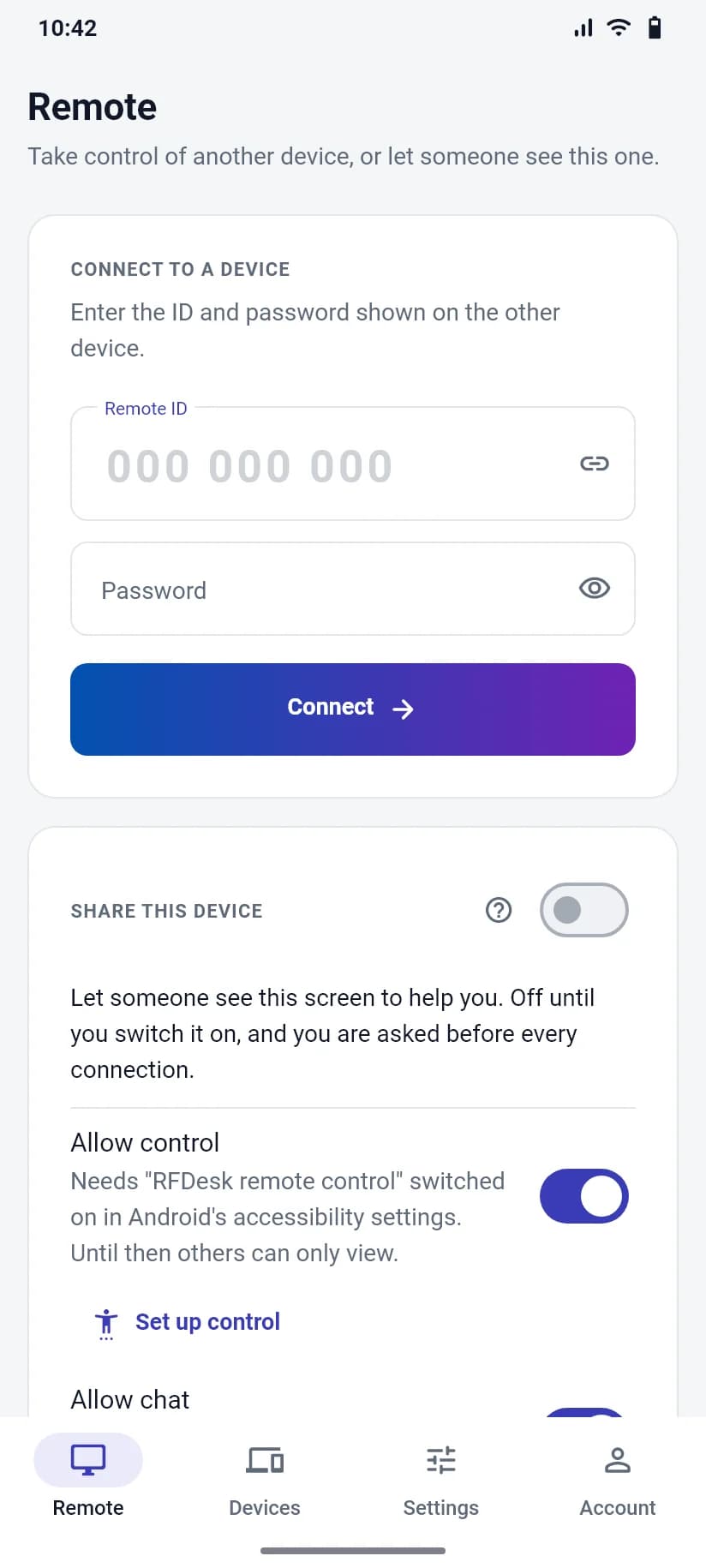
It works for their phone too
On an Android phone, they open Share this device in the RFDesk app and switch it on. When you connect, they choose between viewing only and viewing with control, and Android asks once more before the screen is shared. More on the Android page.
Safe habits to teach them
Remote access tools are also used by scammers who phone people and pretend to be a bank or a software company. RFDesk is built so that the person at the computer decides, but good habits matter more than any feature.
- Only take help from someone you contacted yourself.
- Never read a password, OTP or PIN to an unexpected caller.
- Do not open banking while someone is connected.
- If something feels wrong, press Disconnect first and think afterwards.
Good to know
- Their computer needs Windows and the RFDesk app. You only need a browser.
- The one-time password can change after a session, so ask for the one shown now.
- An iPhone's screen cannot be shared.