 RFDesk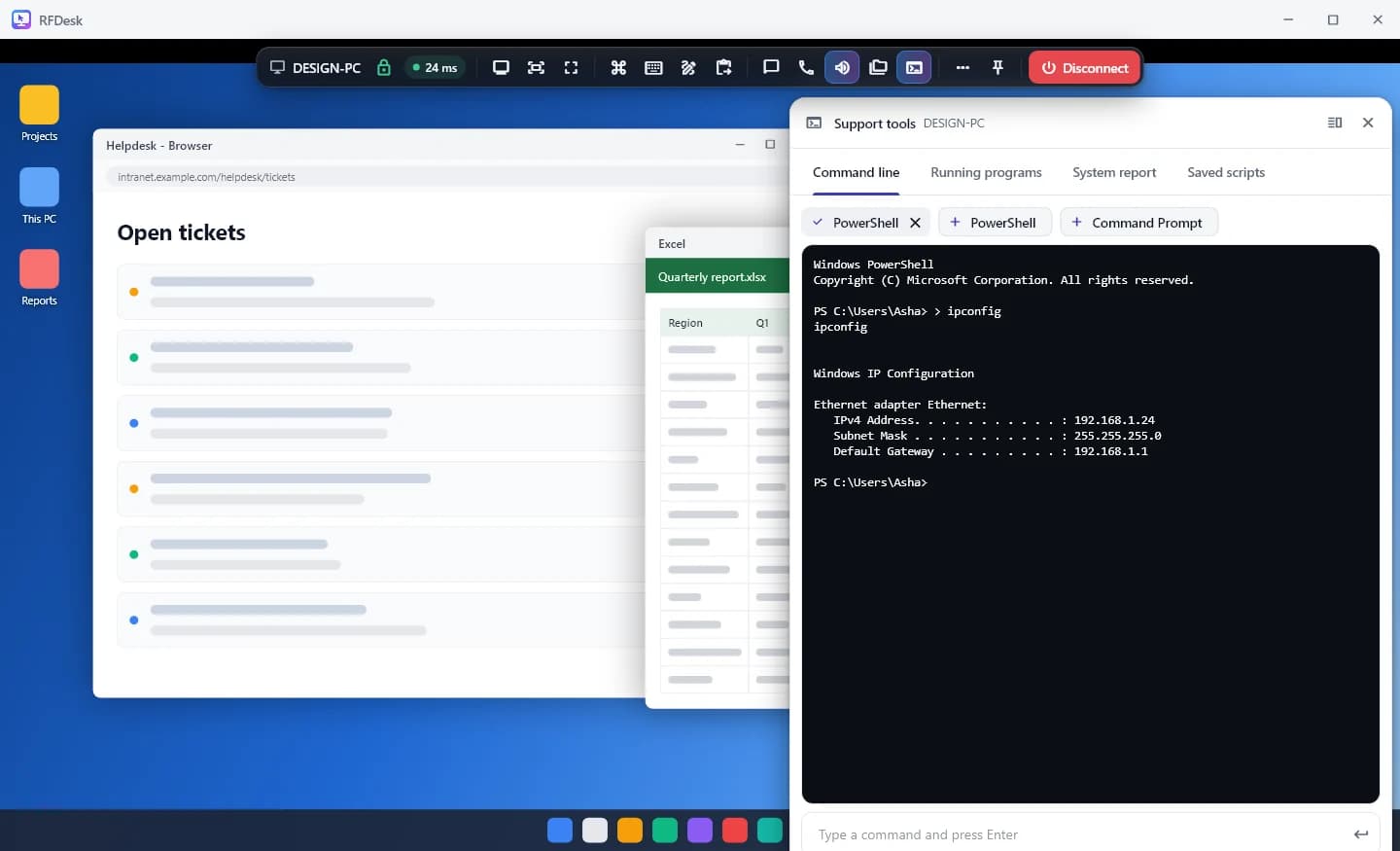
Asked first, every session
Press Support tools in the session toolbar. The tools need control to be allowed, and the person at the computer is asked once per session. They are told plainly that you will be able to run commands, see and end running programs and read a report about the computer. If they decline, you can ask again when they are ready.
Command line
Choose PowerShell or Command Prompt, type a command and press Enter.
- Commands run on the other computer as the person signed in there.
- That computer keeps a log of every line that is run.
- Two command lines can be open at once.
- Copy output copies what was printed.
Running programs
The Running programs tab lists the programs on the other computer with their processor and memory use. Search by name or number, refresh for a new reading, and end a program that has stopped responding. Ending a program closes it at once, so anything unsaved in it is lost.
System report
The System report tab asks the computer for its details: the machine and its serial number, the system and its version, processor, memory, graphics, drives, network adapters, installed programs and updates. Save as text or Save as JSON keeps a copy on your device for the ticket.
Saved scripts, restart and lock
Save the commands you use often as a script with one command per line. Before anything runs you are shown the lines, and you confirm. Scripts are kept in your browser only.
Two more actions sit in the Keys and shortcuts menu. Restart computer restarts the machine, and the viewer then tries to reconnect for up to 15 minutes. Lock computer locks it until someone there unlocks it.
Good to know
- The tools are offered by Windows computers only.
- In an unattended session nobody is asked, because nobody is there. The log of commands is still kept on that computer.
- After a restart the computer only comes back once someone has signed in to Windows on it.
- The tools need control to be allowed, and a team's policy can lock control or restart off on its computers.