 RFDesk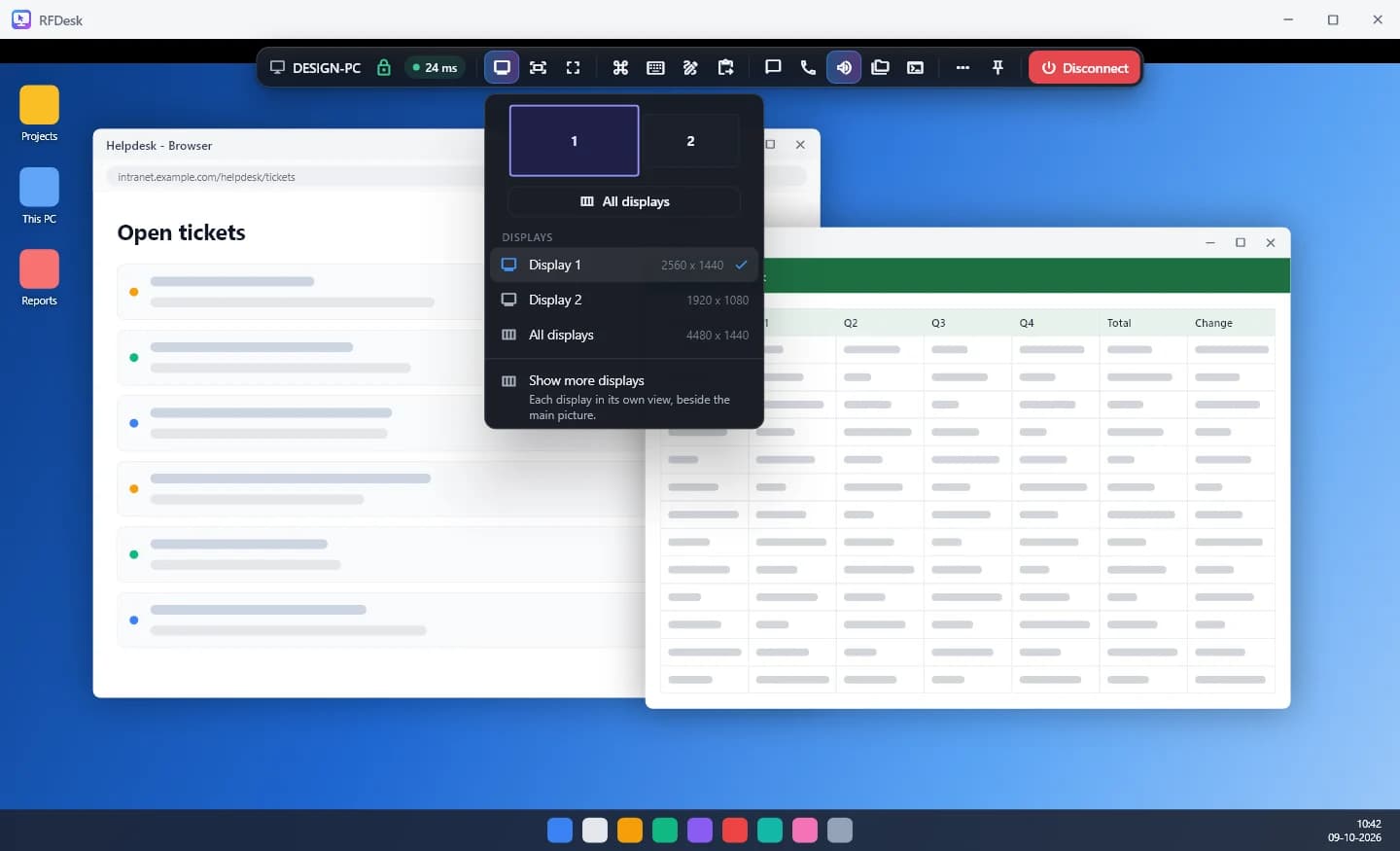
Switch to another display
When the other computer has more than one display, the toolbar shows a display picker with each display and its resolution. Choose Display 1, Display 2 and so on, and the picture switches to that display.
See everything at once
Choose All displays to see every display side by side as one picture. Fit to window, Actual size and Fullscreen in the toolbar help you read a wide desktop on a smaller screen.
One window per monitor
If you have several screens yourself, mirror the remote layout. Press Open in a separate window beside a display, or Show all monitors in separate windows. Each extra display gets its own window, and the mouse acts on the window it is over.
The host chooses what is shared
On the computer being reached, the Share all displays setting decides this. Switched off, only the main display is shared and the others stay hidden from the people who connect. And when a session shares one app only, there is no display picker at all, because only that app's window is shown.
Keeping it smooth
Each extra display costs the other computer some work, so close the ones you do not need. Display options also lets you favour speed over quality, lower the pictures per second, hide the remote wallpaper and set a bandwidth limit on a slow connection.
Good to know
- Browsers allow one new window per click. If a window is blocked, that monitor is shown beside the main picture instead, until you allow pop-ups for this site.
- Switching to another display clears a whiteboard drawing.
- The picker is not shown when the other computer has a single display.