 RFDesk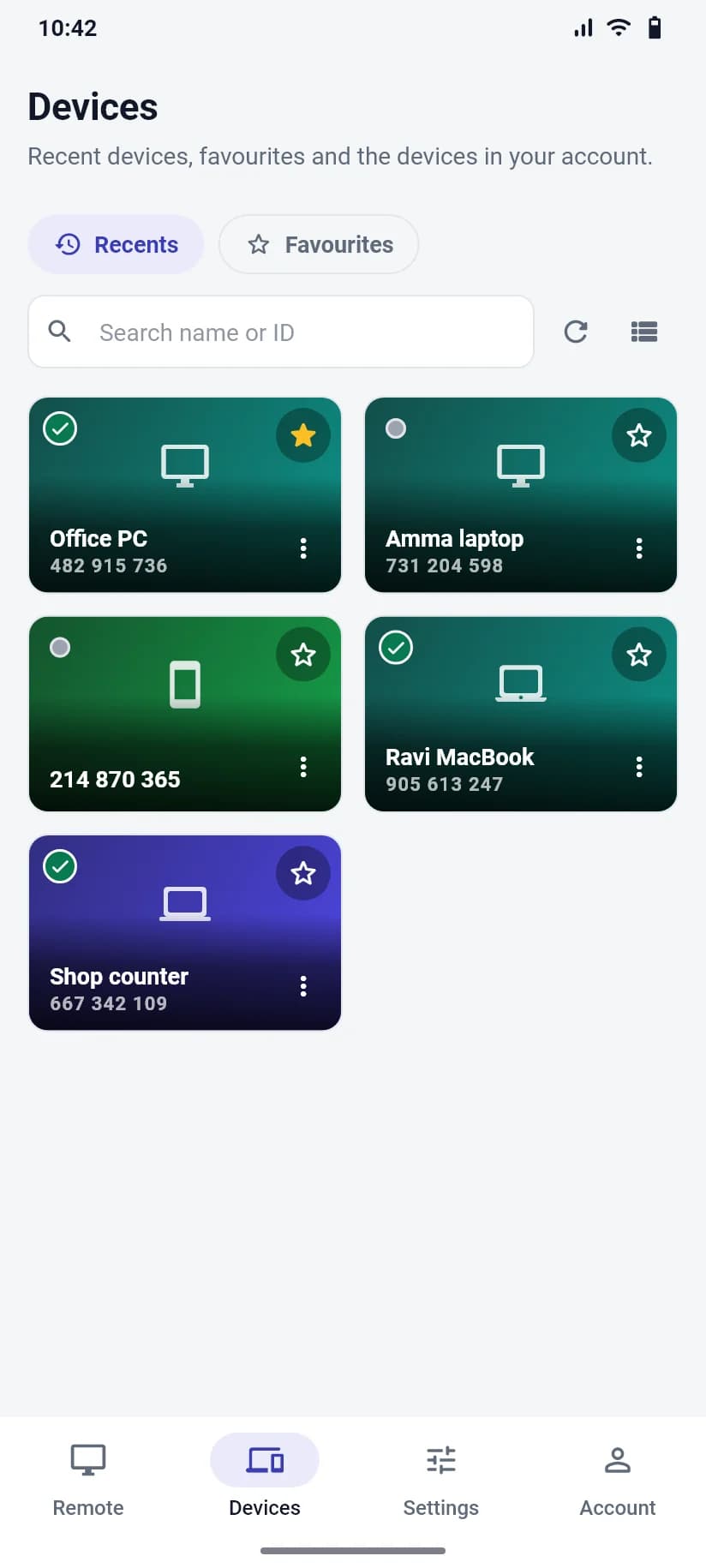
Control a computer from your phone
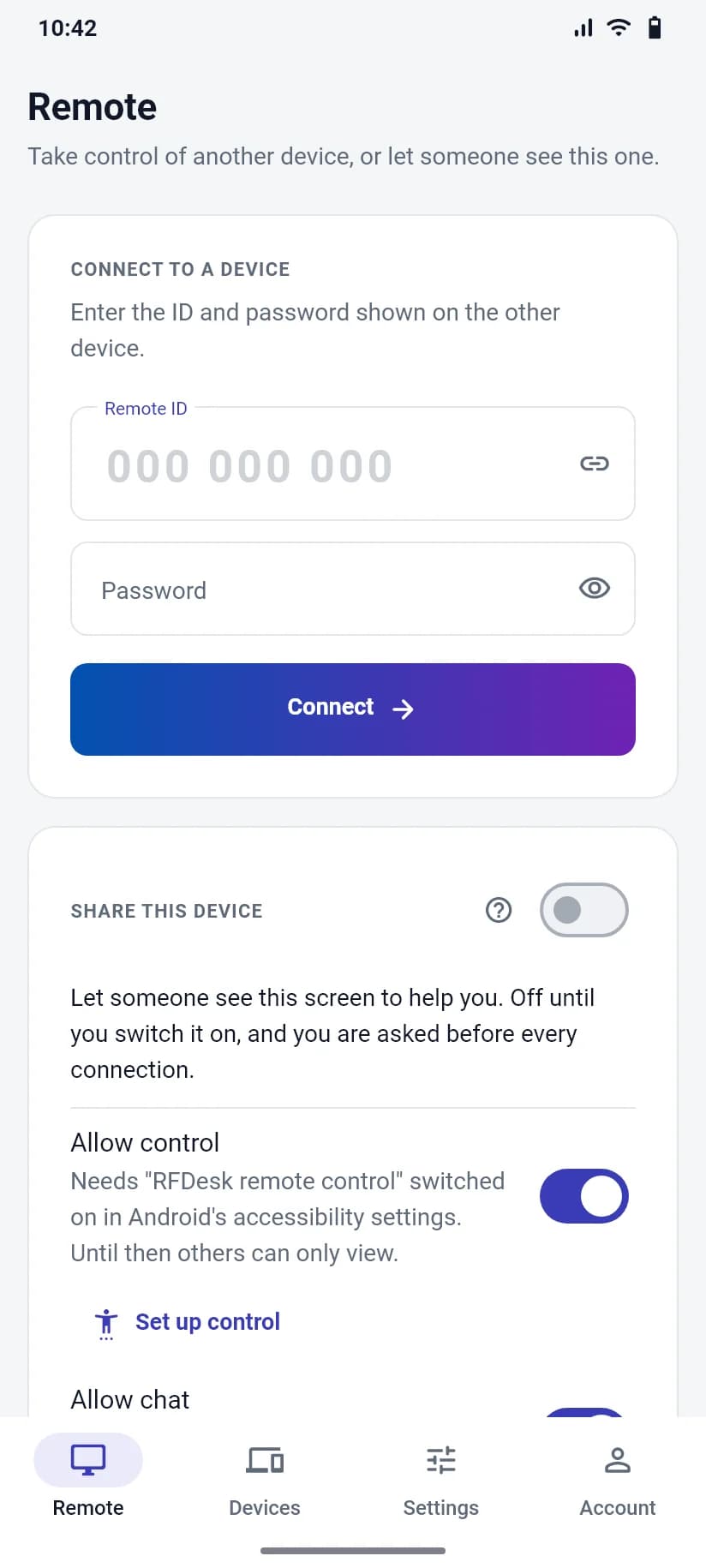
Enter the nine-digit ID and the password of the computer, press Connect, and wait for the person there to accept. The remote screen then fills your phone, and you choose how your finger drives it.
- Touch: the screen is the remote screen. Tap where you want to click.
- Touchpad: the screen is a touchpad. Move the pointer, then tap.
- A long press is a right click, two fingers scroll and a pinch zooms your view.
- On-screen mouse buttons and a key bar with Ctrl, Alt, Shift, Win, Esc and Tab cover what a touch screen lacks.
Your devices, one tap away
Computers you connect to are remembered in the app's Devices tab, with recents and favourites, so the ID does not have to be typed again. Passwords are never stored in the address book.
Get help on an Android phone
An Android phone or tablet can itself be the device that is helped. Open Share this device in the app and switch it on. The app shows an ID and a password, and the password changes after every session.
When someone connects, you are asked every time. Choose Allow viewing only or Allow viewing and control, or decline. Android then asks once more before the screen is shared. Stop, in the app or in its notification, ends the session at any moment.
Letting someone control the phone
For taps, swipes and typing from the other side, Android needs you to switch on RFDesk remote control under Accessibility in its settings. Android shows a strong warning, because such a service can act on the whole device. RFDesk uses it only during a session you approved with control on, and never on RFDesk's own screens, so nobody can answer a connection request or remove the Stop button from afar. Viewing works without it.
What a phone does not offer
- The download page lists the apps published there today. Where the Android app is not listed yet, a phone's browser can still control a computer through the connect page.
- A phone that is being helped does not offer the file manager, sound, voice calls, the whiteboard, remote printing, restart or privacy mode.
- There is no unattended access to a phone. You are asked before every connection.
- An iPhone's screen cannot be shared.