 RFDesk
Features
Everything RFDesk does, one page per feature
RFDesk is remote desktop software for Windows, Android and the browser. Each page below explains one part of it in plain words: what it does, how to use it, and what it does not do.
Features
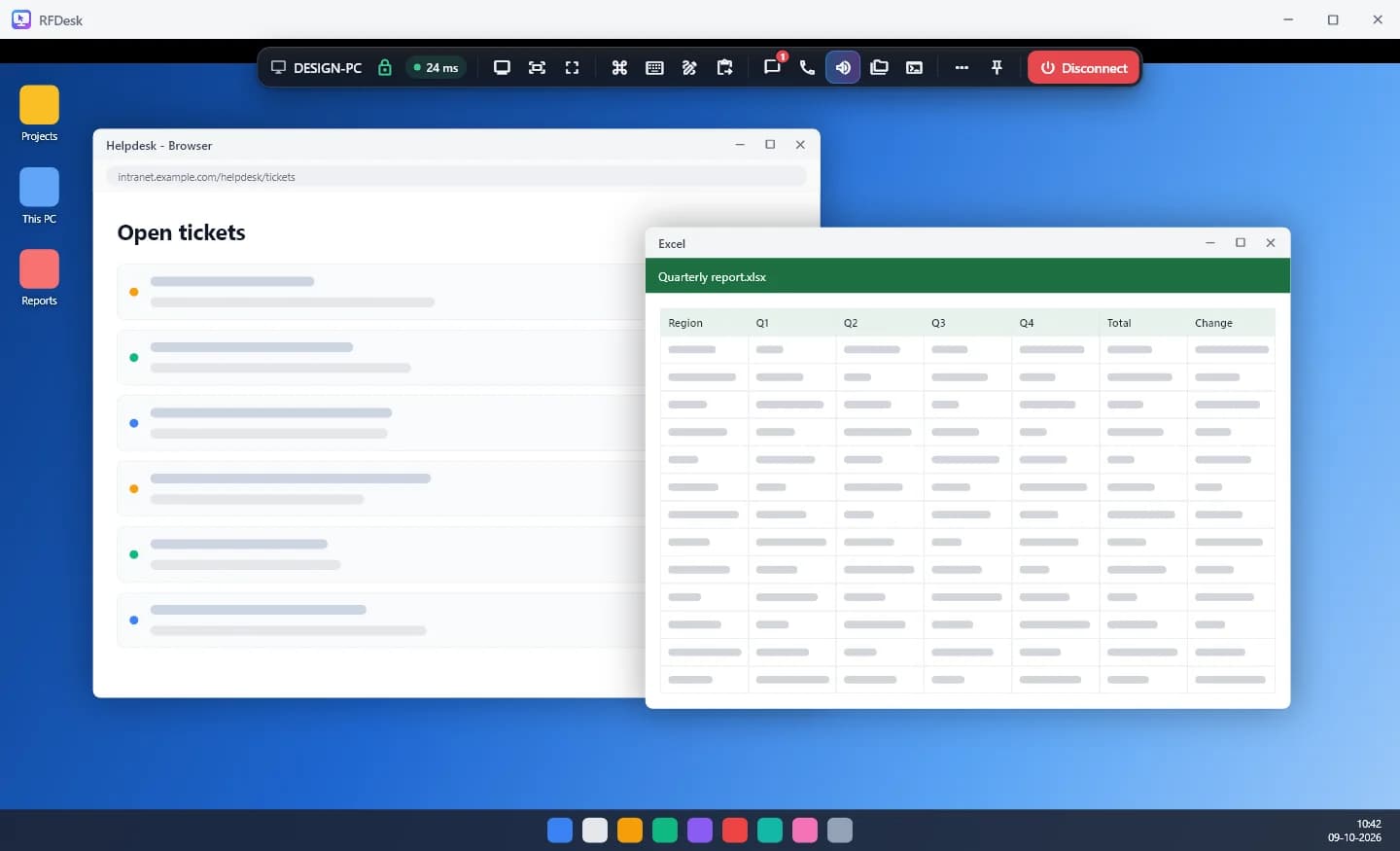
Also in every session
Some tools are too small for a page of their own. Text chat, the remote computer's sound and voice calls sit in the toolbar. A whiteboard lets you draw on the other screen. Remote printing sends a document from the other computer to your printer. Invite links replace reading out an ID and password, and clipboard text and files pass between the two sides when the clipboard is allowed.
Around the session, an account gives you a list of your own computers with access rules and wake-on-LAN, a session history with notes, usage reports and two-step sign-in. The help centre has an article for each of these.
FAQ
Questions and answers
Which devices can RFDesk connect to?
Windows computers running the RFDesk app, and Android phones or tablets that switch on Share this device. You can connect from the Windows app, the Android app or any modern browser.
Are all features available on every plan?
The plan cards on the pricing page state what each plan includes, such as file transfer, session limits and commercial use.
Can features be switched off?
Yes. The person at the computer controls what a session may do, and a team can lock individual features on or off on its computers with a policy.
Ready when you are
Connect from this browser now, or get the app for the computer you want to reach.