 RFDesk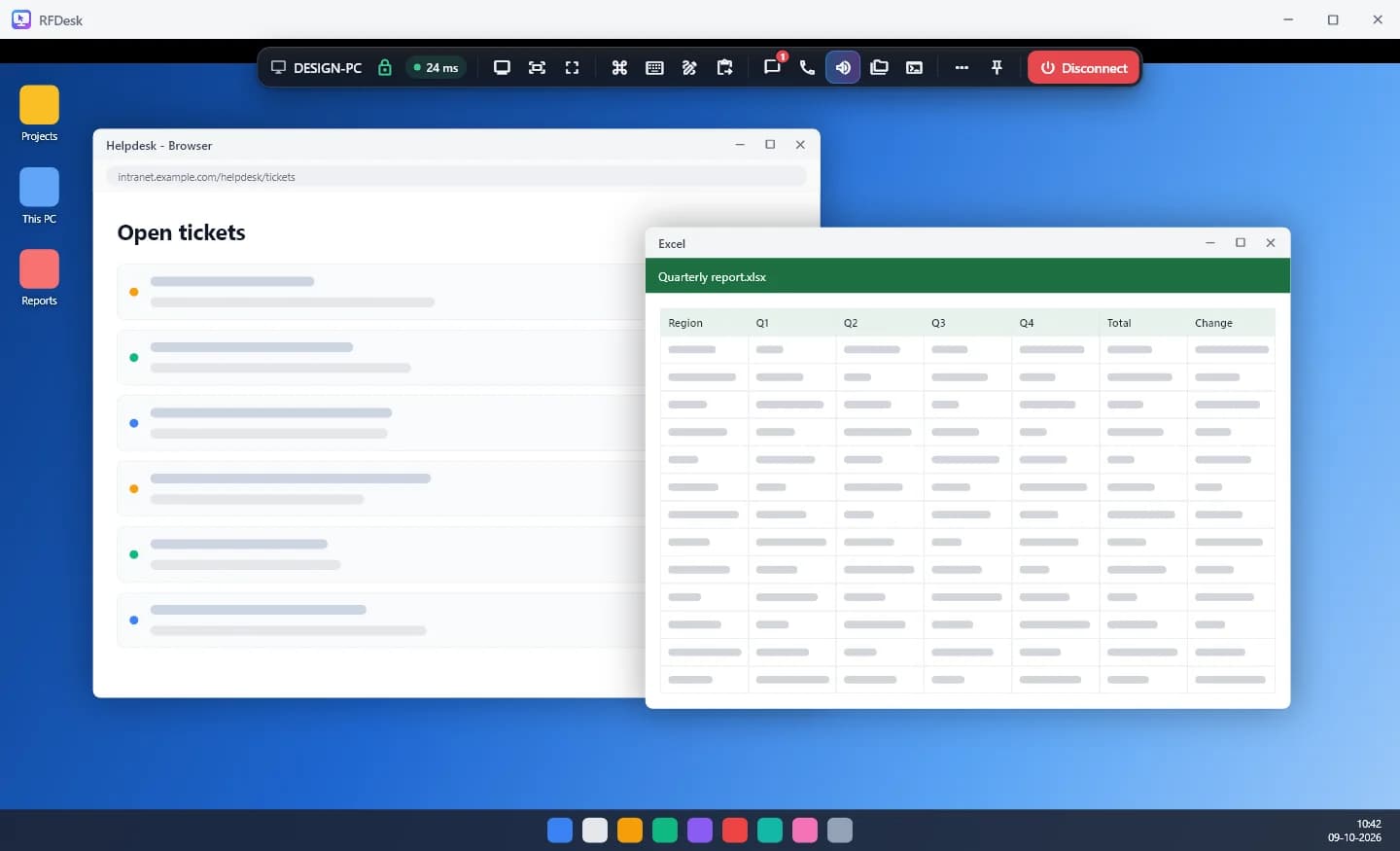
How a support session starts
The person who needs help opens RFDesk on their Windows computer. The app shows a nine-digit ID and a one-time password. They read both out to you, or send you an invite link that fills them in for you.
You enter the ID and password on the connect page of this site, in the Windows app or in the Android app. The request then appears on their screen with your name, a countdown and two buttons: Allow and Decline. If nobody answers in time, the request is declined by itself.
They choose what you can do
Before accepting, the person at the computer decides how much to share. They can change every one of these while the session is running, and your side shows each change straight away.
- Whole screen or One app only. With one app, you see only that window and your clicks and typing reach only that app.
- Control mouse and keyboard. Switched off, you can watch but not touch, and your side shows View only.
- Clipboard, File transfer and Chat, each with its own switch.
Built so the two of you do not fight over the mouse
The person at the computer always has priority. While they move their own mouse, yours is paused, and it works again two seconds after they stop. Your pointer is drawn on their screen in grey with your name, so they can follow what you are doing.
A small panel in the corner of their screen shows who is connected and for how long. It cannot be clicked from your side, and its Disconnect button ends the session at once.
Tools for the fix itself
Most problems need more than a pointer. A session also gives you, when the other side allows them:
- A two-sided file manager to send a driver or fetch a log.
- Text chat, the computer's sound and a voice call that starts only after they agree.
- A whiteboard to draw on their screen and point at what you mean.
- Support tools for Windows: a command line, the running programs and a system report.
- Switching between their monitors, or seeing all of them at once.
After the session
When you are signed in, the session is listed in your history and you can write a note on what was done. The person you helped can rate the session. If a session was misused, either side can report it.
Good to know
- The computer being helped needs the RFDesk app for Windows. An Android phone can also be helped, with fewer tools.
- What a session offers is decided on the other computer, and for a team's computers by the team's policy.
- Whether sessions have a time limit depends on the plan. See pricing.