 RFDesk
Connecting takes five steps
The page shows each stage as it happens: reaching the server, finding the device, waiting for approval, connecting the two devices and checking the connection.
- Open the connect page.
- Type the nine-digit RFDesk ID of the other computer. Pasting an ID with spaces works too.
- Type the password shown on that computer.
- Press Connect and wait for the person there to allow it.
- When the remote screen appears, click it to start controlling.
A full session, not a cut-down one
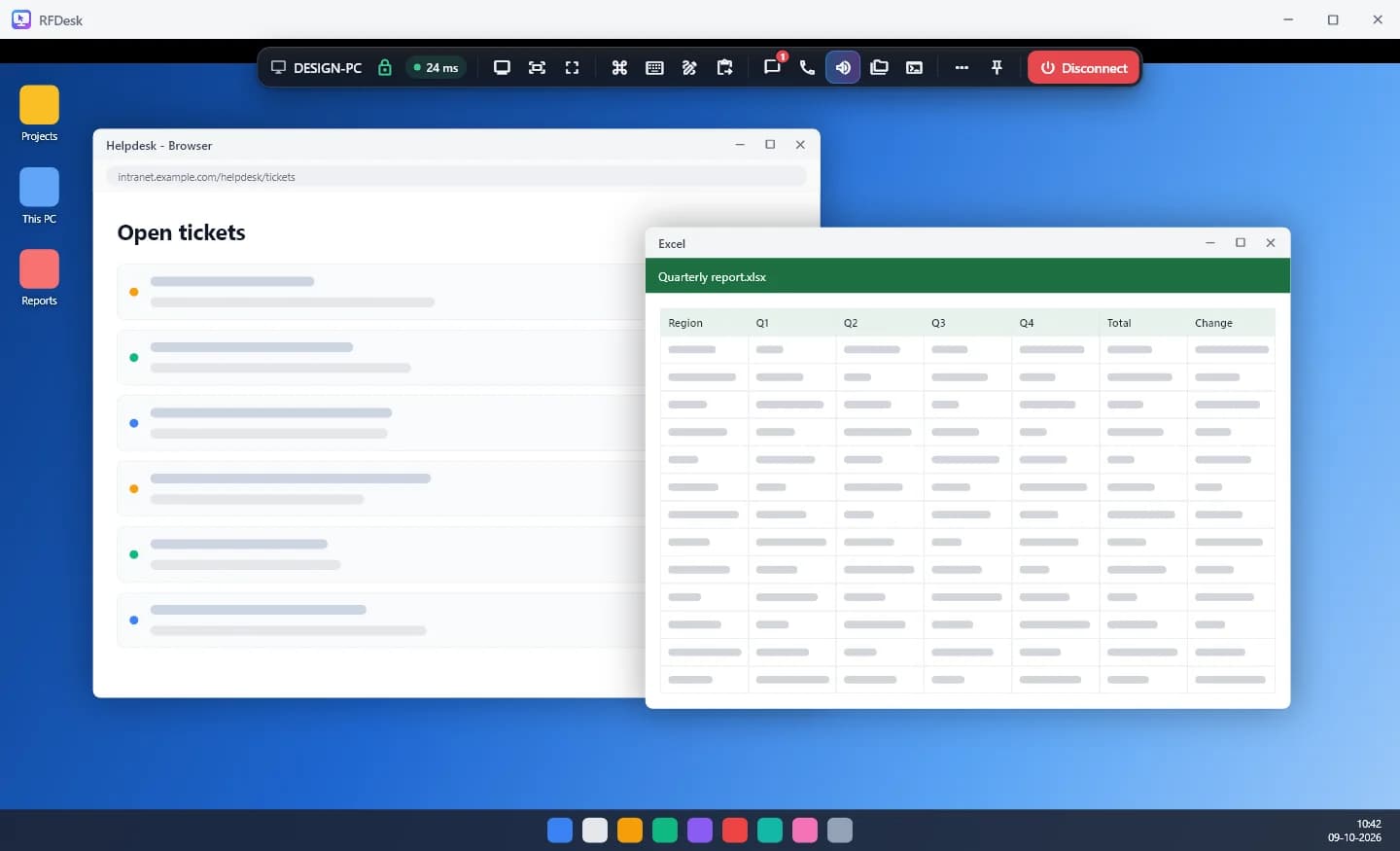
The browser viewer is the complete viewer. Its toolbar holds the same tools you would expect from an installed app.
- Files: the two-sided file manager.
- Chat, the computer's sound and voice calls.
- Session tools: whiteboard, recording, sending files through the clipboard and more.
- Display options: quality, pictures per second, a bandwidth limit and whether to show the remote wallpaper.
- Connection security: the security code and the ciphers that were actually negotiated.
Made for phones and tablets too
On a touch screen the toolbar switches between touch mode and touchpad mode. A long press is a right click, two fingers scroll and a pinch zooms. Show the keyboard opens the on-screen keyboard and Show the special keys adds Ctrl, Alt and the arrows.
The password stays in the tab
The device password is never sent to RFDesk. Your browser and the other device prove to each other that they know it, and a wrong password simply fails. The screen, your input, chat and files then travel between the two devices, encrypted. More on the security page.
Devices you connect to are remembered in an address book in your browser, without their passwords, with an optional preview picture you can switch off.
Good to know
- The computer you connect to needs the RFDesk app. The browser is for the connecting side.
- The connect page has to be opened over HTTPS, which it is on this site.
- A device whose owner allows listed devices only cannot be reached from a browser, because a browser has no device identity. Use the app on a listed device.
- Some features depend on the browser. Folder browsing in the file manager needs Chrome or Edge on a computer, and a few browsers cannot record.