 RFDesk
The password is proved, not sent
When you enter a device's ID and password, your device asks the RFDesk server to find the other device by its ID. The two devices then run a password-authenticated key exchange (SPAKE2). Each proves to the other that it knows the password, without sending the password or anything it could be guessed from. A wrong password simply fails.
The result is a secret that only the two devices share. The server that introduced them does not have it.
Approval at the computer
Knowing the password is not enough. A connection made with the one-time password arrives as a request, and a person at the computer has to press Allow. They see who is asking, choose the whole screen or one app, and set what is permitted. With no answer, the request is declined by itself.
The only way in without approval is unattended access, which is off unless the owner switches it on at that computer with its own password. It can also require a code from an authenticator app.
An encrypted connection that is checked
Once the request is accepted, the two devices connect to each other. Before anything is shared, each side checks the other's encryption certificate against the secret from the key exchange. A connection that fails the check is stopped, and nothing is shared.
Screen, input, chat and files then travel between the two devices, end-to-end encrypted. The picture is encrypted with AES-256-GCM where both sides support it, and the viewer shows which ciphers were actually negotiated. RFDesk's own servers cannot read or alter a session.
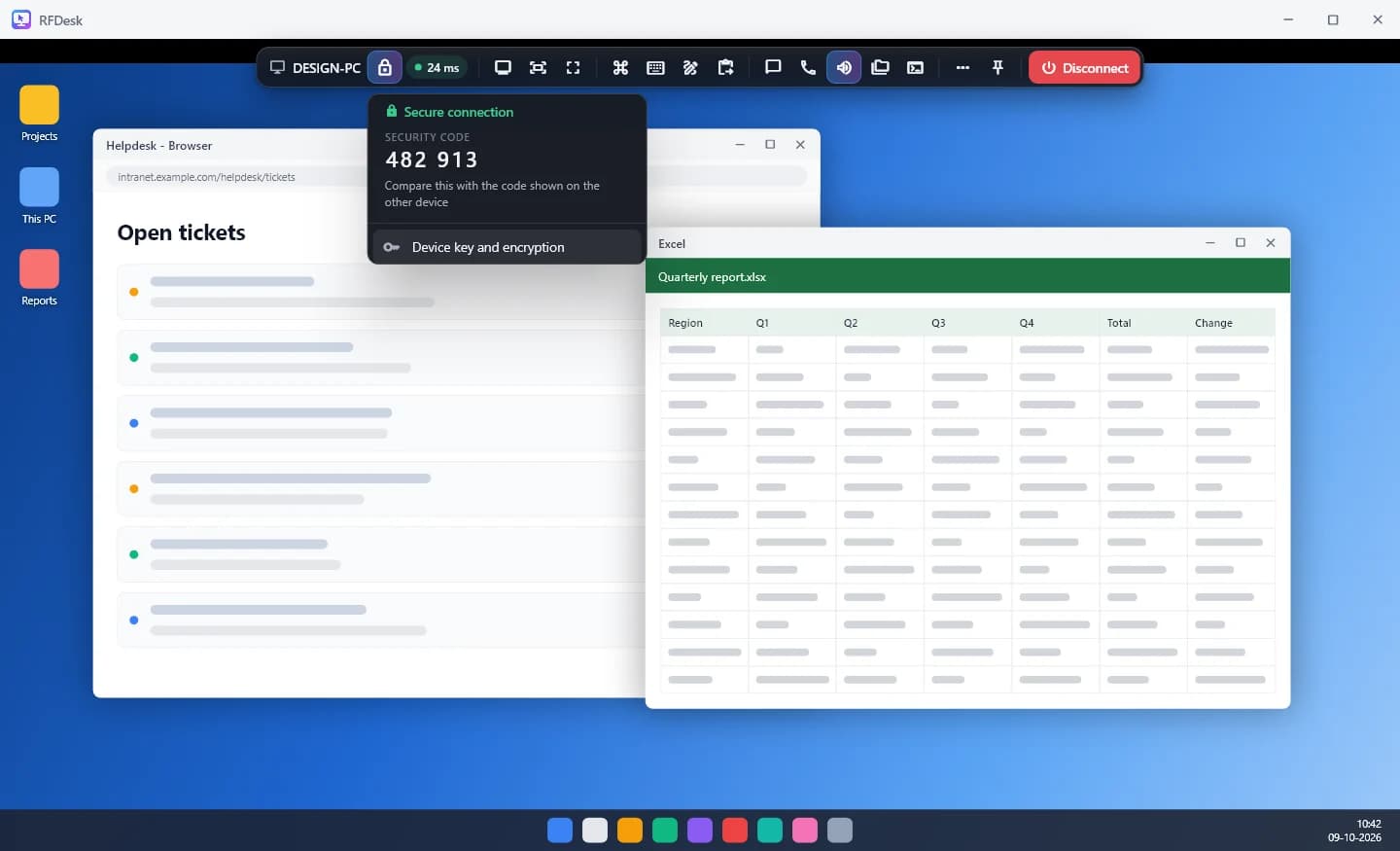
A code two people can compare
During a session both sides show the same six-digit security code. Read the codes to each other, for example over the phone. If they match, nothing sits between the two devices. On the connecting side the code is under Connection security in the toolbar.
Each device you connect to is also remembered by its device key. If the same ID later shows a different key, you are warned before the connection goes any further. That happens after a reinstall, but it can also mean someone is impersonating the device.
Controls for the person being helped
Security is also about what the other person can do once connected.
- Control, clipboard, file transfer and chat are separate permissions, changeable during the session.
- The session panel on the host shows who is connected and cannot be operated by remote input.
- The other computer's files are shown only after the person there agrees, once per session.
- Either side can end the session at any moment.
- A session that was misused can be reported by either side.
Accounts, rules and updates
Around the session itself:
- Accounts can switch on two-step sign-in with an authenticator app and one-time recovery codes.
- Access rules limit a computer to listed accounts or devices, allowed hours and allowed networks. The server applies them before the computer is told that anyone asked.
- The Windows app verifies each update's signature before installing it and refuses one that does not verify.
- Invite links work once and for a limited time, and their key is in the part of the link that is never sent to a server.
What security cannot do for you
- Everything on a shared screen is visible to the other person, including passwords as you type them. Share one app only when that is all they need.
- No tool can protect someone who gives their password to a scammer and presses Allow. Read Staying safe and share it with the people you help.
- Anyone who knows a computer's ID and its unattended password can get in without approval. Choose that password carefully.